A carpool app has a lot to do: help you find a match, agree on a price, handle payment and make you feel comfortable getting in a car with someone new. This tour walks through the main parts of ShareSpace Carpool, what each is for and how to use it. It follows the app's own flow, from searching to rating the ride.

Search results and booking a seat
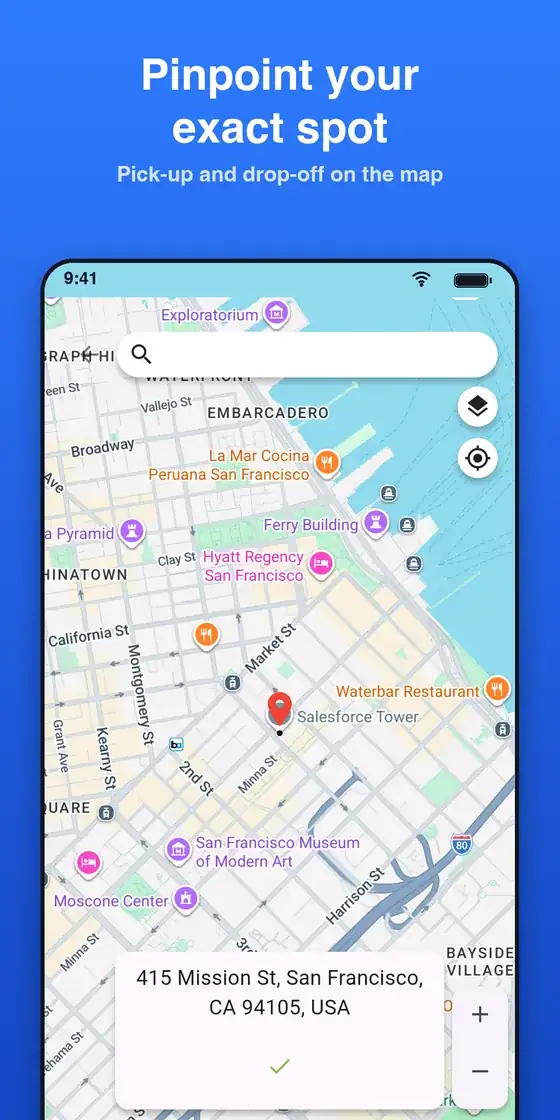
On Home you enter your pickup, drop-off, number of seats and departure time, then tap Search rides. Each result card shows the departure time, the price per seat, how far you would walk to pickup and from drop-off, the driver and the seats left. Chips let you sort by earliest, cheapest or closest.
Open a ride to see the route, the driver and the vehicle. The total you pay, including the service fee and any tax, appears above the Confirm button, so there is no surprise. Choose how you will pay and tap Confirm Ride. If nothing fits, you can tap Request a ride.
Stopovers and booking just your stretch
Drivers can add optional stopovers to pick up riders along the way. For riders, this means you do not have to travel the entire route. If you need only part of it, book that stretch and pay only for it. This is useful when your trip covers the middle of someone's longer drive.
Riley, your AI assistant
Riley is the in-app assistant. Tap Riley AI on Home, then type or tap a prompt such as "I need a ride to work tomorrow", "Find rides near me" or "Show my wallet balance". Riley finds matching rides and helps drivers publish rides. You confirm before anything is booked or published, so you stay in control. For prompts and examples, read the Riley AI assistant guide.
Daily commute setup
If you travel the same way every day, open Home and tap I'm driving or I need rides under "Same commute every day?". Enter your route and the time. Drivers' rides are published for you each day, and riders are matched to rides each day. You can edit or stop a daily ride at any time from your profile. It is the closest the app gets to putting a commute on autopilot.
Payments and the wallet
When you book, you can pay with your wallet, a card, Apple Pay or Google Pay. Card, Apple Pay and Google Pay payments are processed by Stripe. The total is the ride price plus the service fee and any tax on that fee. If you cancel a paid booking before the ride starts, what you paid returns to your wallet and can be used on another ride. You can top up the wallet with Apple Pay, Google Pay or a card, and view your balance and history in Wallet. The details are in our post on the secure wallet system.
Prices are set by the driver per seat and capped to the shared cost of the trip, so carpooling stays about splitting expenses.
Verified members, start code, chat and ratings
Trust is built from several small pieces that work together.
- Verified members: check the driver's rating and verified badge before you book.
- Ride start code: every trip has a code. Ask for it at pickup and share it with your driver, which confirms you are in the right car.
- In-app chat: coordinate pickup details without sharing your phone number.
- Ratings: rate each ride afterward. It gives future riders and drivers something to go on.
No single feature removes all risk, and your own judgment still counts. Our carpool safety checklist adds habits worth keeping, such as sharing your trip details with someone you trust.
How the pieces fit in a typical week
Imagine, for example, a rider who needs to be at work by nine on weekdays. She sets up a daily ride as a rider, so the app looks for a match every day. A driver on her route has published the same commute. She checks the driver's rating and verified badge, books a seat and sees the full total before confirming. At pickup she asks for the start code, rides in, and rates the trip later. Nothing in that sequence needs a phone call.
Tips for getting more out of the app
- Check the walking distance on each result card, not only the price, since a closer pickup can save more time than a slightly lower price.
- Use the sort chips to switch between earliest, cheapest and closest depending on your priority that day.
- If you cannot find a match, use Request a ride so drivers can see what you need.
- Rate every ride. It takes seconds and helps the next person decide.
Frequently asked questions
Do I need to be a driver to use ShareSpace Carpool?
No. You can use it only as a rider, only as a driver or both. Riders search and book seats; drivers offer a ride with their route, time, vehicle and seats.
Does Riley book rides without asking me?
No. Riley can find matching rides and help publish rides, but you confirm before anything is booked or published.
What if I cancel a booking?
If you cancel before the ride starts, everything you paid goes back to your wallet and can be used on another ride.
The quickest way to understand the app is to open it and run a search for your own commute. Download ShareSpace Carpool, sign in with your phone number or Google, and try it on tomorrow's trip.
Ready to carpool?
Download ShareSpace Carpool, free on iPhone and Android.