If you have never booked a shared ride before, the first time can feel like a lot of small decisions. Which ride do you pick? When do you pay? What do you say at pickup? This walkthrough follows the path of a rider on ShareSpace Carpool from the first search to the final rating, so you know what each screen is asking before you tap.

Step 1: Sign in and search for a ride
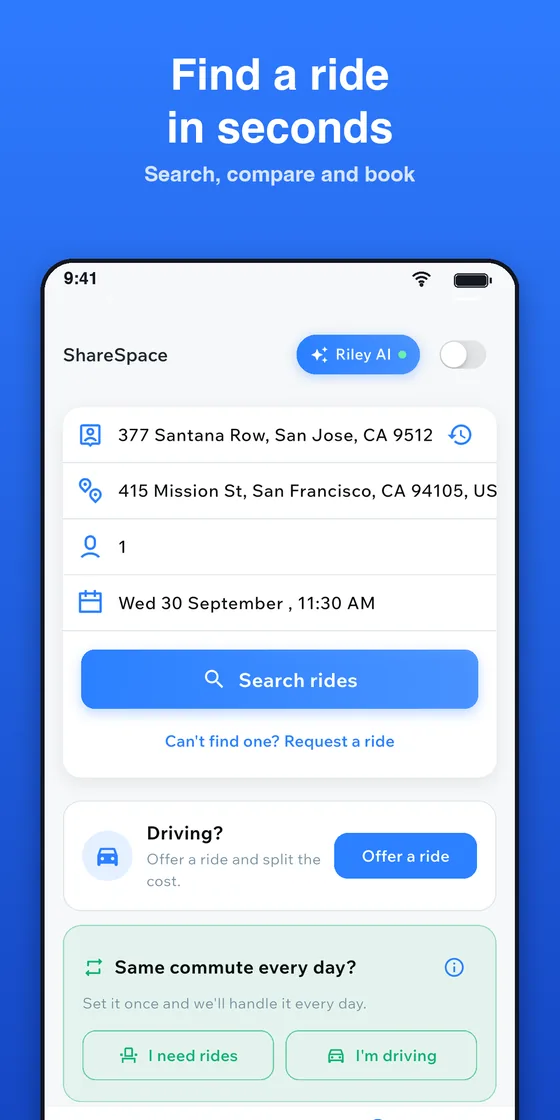
Open the app and sign in with your phone number or with Google. You land on the Home screen. Enter four things: your pickup point, your drop-off point, the number of seats you need, and your departure time. Then tap Search rides.
A few habits make searching easier:
- Search for the time you actually need to leave, not a time you hope for.
- Count seats honestly. If you are traveling with a friend, search for two.
- Use real addresses or well-known landmarks for pickup and drop-off so the walking distances shown later are meaningful.
If you would rather talk than type, you can also ask Riley, the in-app assistant, for something like "I need a ride to work tomorrow." Riley finds matching rides, and you confirm before anything is booked. There is more in our guide to Riley.
Step 2: Compare the results
Each result is a card. On it you can see the departure time, the price per seat, how far you would walk to the pickup point and from the drop-off point, the driver, and how many seats are left. That is plenty to make a first cut.
Above the list are chips that sort the results by earliest, cheapest or closest. Each one answers a different question:
- Earliest helps when your schedule is tight and the departure time matters most.
- Cheapest helps when you are comparing the price per seat across several options.
- Closest helps when you want the shortest walk at either end.
Do not judge by one measure alone. A ride that is a little more per seat but leaves two minutes from your door may suit you better than a cheaper one that needs a long walk.
Step 3: Open a ride and check the details
Tap a card to open the ride. You will see the route, the driver and the vehicle. Check the driver's rating and verified badge before you book. If the route passes near your pickup and drop-off, you are in good shape. Because drivers can add stopovers, you may be joining only part of their trip, and that is fine: you book your stretch.
The price shown on the card is per seat. The screen you reach before booking shows the total you will pay, including the service fee and any tax, right above the confirm button. Look at that number, not just the card price, so there are no surprises.
Step 4: Book the ride and choose how to pay
Choose your payment method, then tap Confirm Ride. You can pay with your wallet, a card, Apple Pay or Google Pay (card, Apple Pay and Google Pay are processed by Stripe), or you can pay the driver in cash. If you pay the driver in cash, only the service fee is paid in the app. The full range of options is explained in how to pay for a carpool ride.
When the ride is under way, open it from My Rides and tap Pay Now. The total is the ride price plus the service fee and any tax. If you change your mind, canceling a paid booking before the ride starts returns everything you paid to your wallet.
Step 5: Meet your driver and use the ride start code
Use the in-app chat to settle small details such as exactly where you will stand and what the car looks like. You never need to share your phone number to do this.
At pickup, ask the driver for the ride start code. It confirms you are getting into the right car, so make it part of your routine every time. If you want a longer list of habits to follow, see our carpool safety checklist.
Step 6: Rate the ride
When the trip ends, rate it. Ratings help the next rider choose and help drivers understand how their ride went, so a quick honest rating is a small way to look after the community.
What if nothing matches?
Sometimes a search comes back empty, especially at unusual hours. You have two options in the app. Tap Request a ride to let drivers know what you need, or set up Repeat daily as rider if you travel the same commute every day, so riders are matched to rides every day. You can edit or stop a daily ride at any time from your profile.
Frequently asked questions
Do I need to share my phone number with the driver?
No. Use the in-app chat to coordinate. You can sign in with a phone number or Google, but you do not need to give your number to the driver.
What happens if I cancel after booking?
If you cancel a paid booking before the ride starts, everything you paid returns to your wallet, where you can use it on another ride.
Can I book only part of a driver's route?
Yes. If the route fits the stretch you need, you can book just that stretch and pay only for it. Drivers can add stopovers along the way for this reason.
Ready for your first ride?
Now that you know what each step looks like, the easiest way to learn is to try it. Download ShareSpace Carpool, search for your usual trip, and see which rides are heading your way. If you want a gentler introduction first, our getting started guide covers the basics.
Ready to carpool?
Download ShareSpace Carpool, free on iPhone and Android.